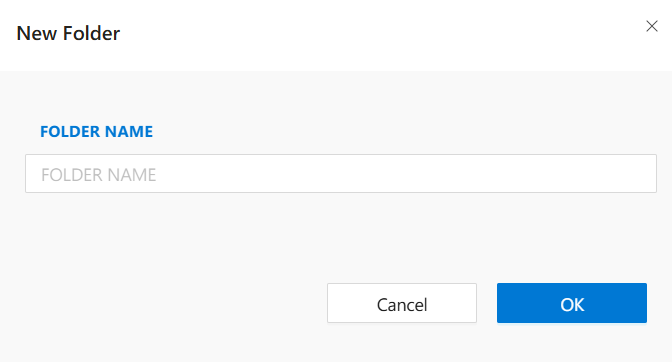
New Folder Dialog
When working on a Synergy IDE project, organizing static files within the asset folder is essential. Using the New Folder option, developers can create subfolders to group related files by type, purpose, or module.
This dialog is launched when you right-click the asset folder and choose New Folder.
Steps to Create a New Folder:
- Right-click the asset folder in the Solution Explorer.
- Select New Folder from the context menu.
- The New Folder dialog will open.
- Enter the desired folder name (e.g.,
images,scripts,configs). - Click OK to confirm.
The new subfolder will appear under the asset folder, ready to hold related files.
Use Cases:
- Grouping images in an
images/folder. - Separating custom scripts into a
scripts/folder. - Placing configuration files inside a
configs/directory.
Folder names must be unique and should not contain special characters.